
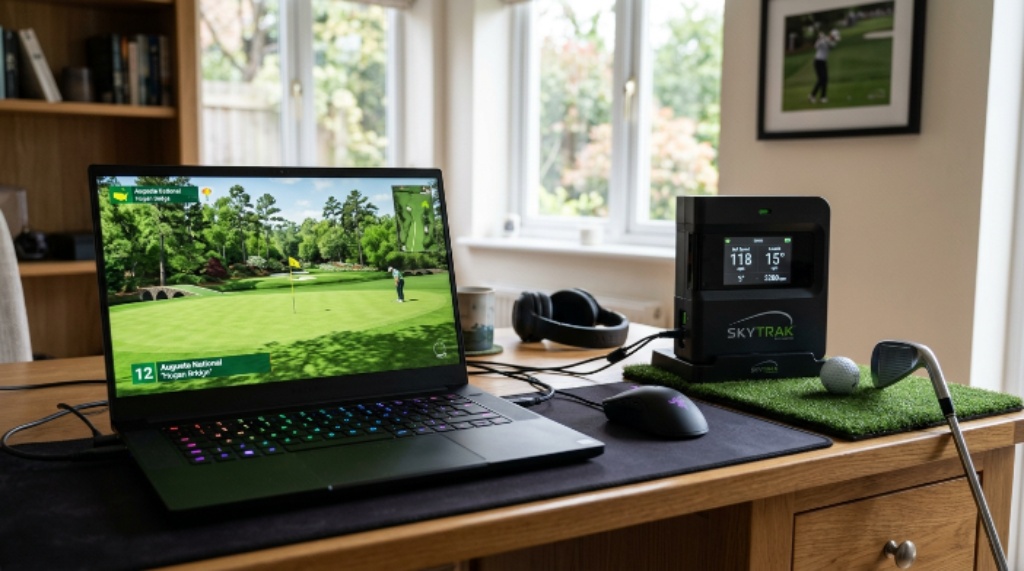
Setting up a home golf simulator is exciting. You get to practice your swing, play famous courses, and improve your game without leaving the house. However, one mistake can ruin the entire experience — buying the wrong laptop. The software that powers a golf simulator is demanding. It needs serious hardware to run smoothly. This guide breaks down everything you need to know before you spend a single dollar.
Why Your Laptop Choice Makes or Breaks the Experience
Golf simulator software is not like a basic office application. It renders detailed 3D golf courses in real time. It tracks ball flight, spin rate, and launch angle simultaneously. Therefore, your laptop must handle heavy graphics processing and fast data calculations at the same time.
A weak laptop will cause lag, stuttering, and crashes. These problems do not just frustrate you — they can throw off your shot data and make practice sessions unreliable. Additionally, most simulator setups involve external launch monitors and sensors. Your laptop must communicate with these devices without slowing down. Choosing the right machine from the start saves you from expensive upgrades later.
Understanding the Role of the Processor
The processor, or CPU, is the brain of your laptop. Every calculation your golf simulator makes passes through it. This includes physics modeling, sensor data processing, and course rendering. A slow processor creates bottlenecks that no other component can fix.
For golf simulator software in 2026, you want at least an Intel Core i5 or AMD Ryzen 5 from a recent generation. However, if your budget allows, step up to an i7 or Ryzen 7. These processors handle multitasking effortlessly. They keep the simulator running while managing background processes at the same time.
Clock speed matters too. Look for a base clock of at least 2.5 GHz. A higher boost clock, around 4.0 GHz or above, helps during the brief, intense moments when shot data is being processed. Therefore, do not just look at the processor name — check the full spec sheet.
How Much RAM You Actually Need
RAM is where your laptop stores active data during use. Golf simulators load large course files, texture maps, and shot history into memory while running. If your RAM is too low, the system slows down as it constantly swaps data in and out of storage.
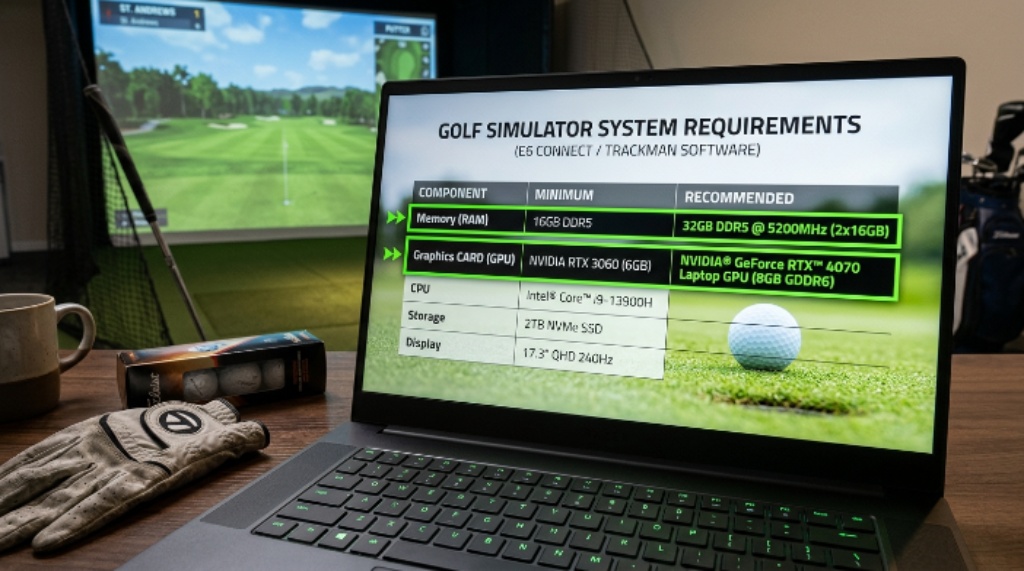
The minimum RAM for golf sim software is 8 GB. However, 8 GB leaves very little room for anything else. You may not be able to run the simulator alongside a web browser or any companion app. For a comfortable experience, 16 GB is the sweet spot. It gives the simulator enough room to breathe and still leaves space for background applications.
If you plan to run high-resolution course graphics or use additional analysis software alongside the simulator, consider 32 GB. This is especially relevant for serious golfers who record swing videos, review shot data, and run the simulator all at once. RAM for golf sim setups is one of the most affordable upgrades you can make, so do not cut corners here.
Graphics Processing — The Most Critical Component
This is where most buyers make mistakes. The graphics processing unit, or GPU, handles everything your eyes see on screen. It renders the fairways, trees, lighting, shadows, and ball flight animations in real time. A weak GPU turns a beautiful golf course into a choppy, unpleasant slideshow.
Golf simulator software varies in its GPU demands. Entry-level programs can run on integrated graphics. However, integrated graphics — the kind built into the processor — share memory with the CPU. They are not designed for sustained 3D rendering. Most serious simulator platforms strongly recommend a dedicated GPU.
For a smooth experience, look for a dedicated GPU with at least 4 GB of video memory. NVIDIA GeForce GTX or RTX series cards are common choices. The RTX 3050 and RTX 4050 offer excellent performance at a mid-range price. AMD Radeon RX cards are also a solid alternative. A strong GPU for golf simulator use ensures the course graphics stay fluid even during demanding shot sequences, which keeps your data accurate and your experience immersive.
Storage Speed and Capacity
Storage is often overlooked, but it plays a real role in simulator performance. Golf courses are stored as large files on your drive. When you switch courses or load a new hole, the laptop reads these files from storage. A slow drive creates long loading times and occasional stutters.
Always choose a laptop with a solid-state drive, commonly called an SSD. An SSD reads data far faster than a traditional spinning hard drive. This makes course loading nearly instant. Avoid any laptop that relies solely on a hard disk drive for its primary storage.
For capacity, 512 GB is a workable minimum. However, 1 TB gives you room to install multiple simulator platforms, store swing videos, and keep your operating system running efficiently. If you can, choose a laptop with an NVMe SSD rather than a basic SATA SSD. NVMe drives are significantly faster and the price difference is often small.
Display Considerations for a Realistic Experience
The display affects how immersive your simulator feels. A screen that is too small or too dim makes it hard to read shot data and enjoy the course visuals. For a laptop used with a golf simulator, aim for at least a 15.6-inch display.
Resolution matters as well. A Full HD display, which is 1920 by 1080 pixels, is the standard. It provides sharp, clear images without pushing the GPU too hard. If you want to go further, a 2K or QHD display offers even more detail, but it requires a stronger GPU to maintain smooth performance.
Additionally, pay attention to refresh rate. A 60 Hz refresh rate is acceptable. However, a 120 Hz or 144 Hz display makes motion look noticeably smoother. This is particularly nice when watching ball flight replays in slow motion.
Connectivity and Ports
Golf simulators often connect to external hardware. Launch monitors, projectors, and cameras all need ports. Therefore, your laptop must have the right connections available.
Look for at least two USB-A ports and one USB-C port. An HDMI port is essential if you plan to project your screen onto a wall or simulator screen. Some setups also use Ethernet for a stable, low-latency connection. A built-in Ethernet port or a USB-to-Ethernet adapter solves this easily.
Bluetooth connectivity is also useful. Many modern launch monitors communicate wirelessly. Make sure your laptop supports at least Bluetooth 5.0 for a fast, reliable wireless link.
Battery Life and Thermal Performance
Golf simulator sessions can last for hours. A laptop with poor battery life will force you to stay tethered to a power outlet. That is fine for a stationary setup, but inconvenient if you move your simulator between rooms or locations. Look for a battery rated at least six hours under moderate use.
Thermal performance is equally important. Running graphics-intensive software for long periods generates heat. A laptop with poor cooling will throttle its own performance to prevent damage. This causes the exact stuttering and lag you were trying to avoid.
Read reviews that specifically test thermal performance under load. Laptops with dual fan systems and proper heat pipe layouts handle extended sessions much better. Additionally, using a laptop cooling pad adds an extra layer of protection during long practice sessions.
Budget Ranges to Expect in 2026
Understanding specs is helpful, but knowing what to budget makes it practical. Here is a rough breakdown:
- Entry level ($600–$900): Handles basic simulator software, limited graphics settings, suitable for beginners
- Mid range ($900–$1,400): Covers most popular simulator platforms comfortably, good GPU and RAM balance
- High end ($1,400–$2,500+): Runs any simulator at maximum settings, supports 4K output, ideal for serious golfers
The mid-range category offers the best value for most users. You get a dedicated GPU for golf simulator performance, sufficient RAM, and fast SSD storage without overpaying for features you may never use.
Conclusion
Buying a laptop for a golf simulator is not the same as buying a general-purpose computer. The software is demanding, and the wrong choice leads to a frustrating experience. Focus on four key areas: a capable processor, at least 16 GB of RAM for golf sim comfort, a dedicated GPU with sufficient video memory, and a fast SSD for storage. Do not forget to check ports, display quality, and thermal performance as well. With the right laptop, your simulator sessions will be smooth, accurate, and genuinely enjoyable. Take your time, compare models carefully, and invest in hardware that matches the quality of your simulator software.
Frequently Asked Questions
Can I run a golf simulator on a regular office laptop?
Most office laptops lack a dedicated GPU and have limited RAM. They may run basic simulator software at low settings, but the experience will be poor. For reliable performance, choose a laptop built for gaming or creative work.
Is a gaming laptop good for a golf simulator?
Yes. Gaming laptops are designed for exactly the kind of sustained, graphics-heavy workload that golf simulators demand. They typically include dedicated GPUs, fast RAM, and strong cooling systems, making them an excellent choice.
Does the simulator software brand matter for hardware requirements?
Absolutely. Different platforms have different demands. E6 Connect, GSPro, and TGC 2019 each have their own minimum and recommended specs. Always check the software developer’s official hardware requirements before buying your laptop.
How important is the GPU compared to the CPU for golf simulators?
Both matter, but the GPU is usually more critical for visual performance. The CPU handles data processing from launch monitors and physics calculations. Ideally, you want a balanced system rather than spending heavily on one and neglecting the other.
Can I upgrade the RAM or GPU in a laptop later?
RAM is upgradeable in many laptops, though some models have it soldered to the motherboard. GPUs in laptops are almost never upgradeable. Therefore, buy a laptop with the GPU you need from the start, and treat it as a long-term investment.
Related Topics:
How to Use a Golf Swing Analyzer Device to Improve Your Game